English
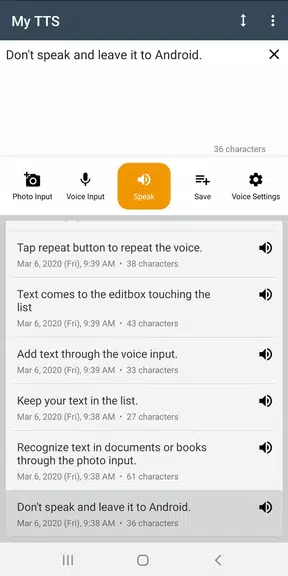
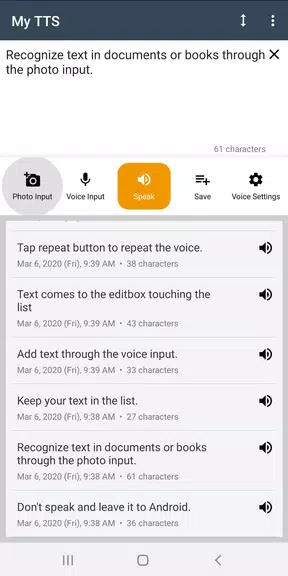
My TTS: Text-to-Speech turns typed text, notes and documents into clear spoken audio so you can listen instead of read. The app is designed for everyday use, offering adjustable speed and pitch, selectable voices across multiple languages, on-device offline voices for privacy and low latency, and standard export options such as MP3 and WAV. My TTS: Text-to-Speech is built to support accessibility and productivity without imposing complex workflows, making it straightforward to convert short notes or long manuscripts into reliable audio files.
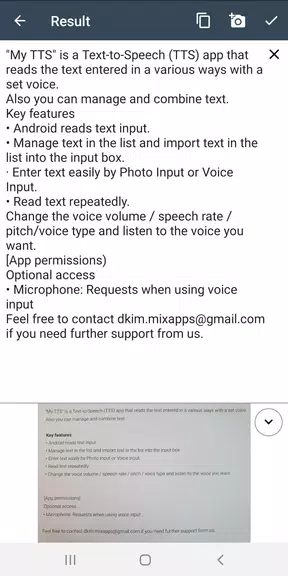
The conversion workflow in this app is compact but flexible: paste text or import common document formats including TXT and PDF, or have the app read directly from the clipboard. You choose a voice, preview the output, adjust speaking rate and pitch, and then export. The engine analyzes punctuation and basic formatting to place natural pauses and emphasis so the speech feels coherent. For users who need fine-grained control there are SSML-like markers supported where available, which let you influence pronunciation and pause placement within a document.
Playback controls are intentionally simple: play, pause, skip and a scrub bar for precise seeking that works well on touch screens. Notification-based playback and Bluetooth media button support make hands-free listening possible while commuting or working. Sliders for rate and pitch respond immediately so you can audition changes in real time, and a compact equalizer provides tonal tweaks. Keyboard shortcuts and a focused player view reduce friction for users who repeatedly edit and listen to the same passages.
The app treats conversions like lightweight projects so you can progress from draft text to finished audio with predictable steps. Import a file, audition several voices, apply pronunciation corrections via a built-in dictionary, save those adjustments as a preset, and then queue multiple files for sequential conversion. Scheduled jobs let you run batch exports during off-peak hours. This progression system is useful for students preparing study materials, podcasters assembling scripts, or anyone who needs to manage repeated conversion tasks over time.
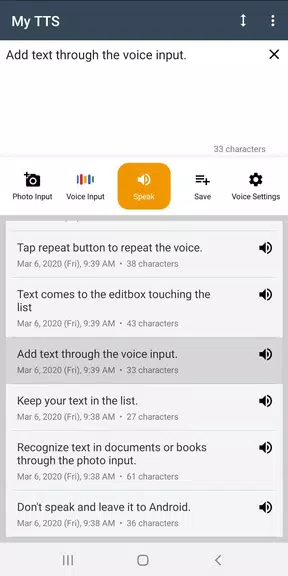
Choose from a range of male and female voices that cover conversational tones and more formal narration. Language support includes major global languages and selected regional variants for clearer localized pronunciation. Voice previews let you compare intonation at different speeds before exporting, and advanced customization offers pronunciation dictionaries and configurable breathing pauses to reduce mechanical cadence. Presets save voice, speed and pronunciation settings so you can quickly recall a preferred narration style without reconfiguring controls.
Offline voices are available for users who need local conversion for privacy or reduced latency; these require additional storage but keep sensitive text on-device. Background conversions and scheduled queues are optimized to limit CPU and battery impact, and the app is tuned to run reliably on modern mid-range Android hardware. Cloud-enhanced voices are optional when higher fidelity or additional accents are desired, letting you balance quality against bandwidth and privacy considerations.
Large documents are processed in segments so conversions avoid timeouts and make progress easy to monitor. Checkpointing lets you resume long runs without starting from scratch, and error handling surfaces clear messages for unsupported file elements while offering fallback text extraction when PDF layouts are complex. These safeguards reduce the need to manually split content before conversion and make multi-hour reading projects more manageable.
The interface emphasizes clarity with large touch targets, adjustable font scaling, and high-contrast themes for better readability. Simple player controls and notification-based playback support listening without visual attention, and accessibility settings let users enlarge controls or simplify screens. The visual style is intentionally minimal to reduce distractions and keep focus on text-to-audio tasks whether you are using a phone or a tablet.
To get started, install My TTS: Text-to-Speech, try a sample passage and preview a voice at several speeds to find a comfortable tempo. Install one offline voice to test local conversions, then export a short MP3 or WAV file to confirm settings. Break dense paragraphs into shorter sentences and use punctuation to guide emphasis for more natural output. Saving commonly used pronunciation corrections and presets increases replay value, letting you reproduce a chosen narration style quickly across multiple projects.
Tracker Detect Pro
Size:10.39M ToolsWiFi Speed Test Pro
Size:8.11M ToolsGG Mouse Pro 2
Size:45.82M ToolsResource Monitor Mini Pro
Size:3.19M ToolsSmart Keyboard Pro
Size:23.22M ToolsMyScript Math: Solve & Plot
Size:108.76M ToolsText Repeater
Size:11.73M Tools3Dcalc+
Size:12.59M ToolsMyScoreTracker
Size:80.28M ToolsPanda Touch Pro
Size:18.13M ToolsDual Space : Multi App
Size:7.23M ToolsSound Recorder Plus: Voice Rec
Size:20.50M ToolsApril 2024 Clash of Clans Update: Unveiling a Fresh Companion, Enhanced Levels, Chat Tagging, and Be
2024-04-16Arrival of Genshin Impact 4.6 Update: 'Embers of Two Realms, Twilight of Crimson'
2024-04-16V2.2 of the Farlight 84 update introduces an overhauled Season structure, fresh in-game currency, an
2024-04-16Monster Never Cry is now accessible on both Android and iOS mobile devices.
2024-04-18PUBG Mobile Teams Up with Bentley Motors: Luxury Cars, Exclusive Collectibles, and Beyond
2024-04-18March 2024 Free Redemption Codes for Honkai: Star Rail
2024-04-18