English
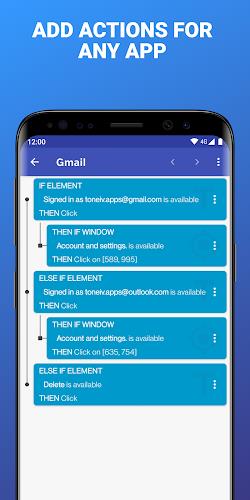
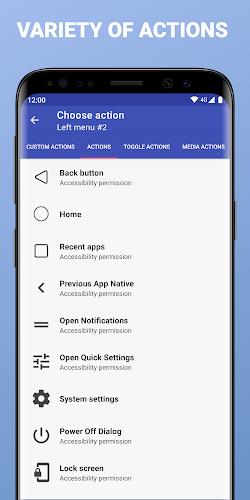
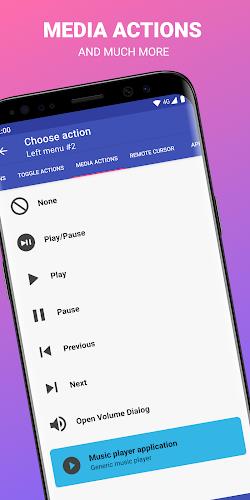
UbikiTouch is a compact utility that brings precision touch controls and customizable input overlays to Android devices, helping users create shortcuts, remap gestures, and streamline repetitive tasks in one lightweight package. Designed for both productivity and accessibility, it adapts to workflows without introducing heavy battery drain or steep learning curves.
At its core, UbikiTouch provides an onscreen toolkit for managing taps, swipes, and multi-finger gestures. Rather than replacing your launcher or requiring deep system changes, it layers useful controls over apps so you can trigger actions quickly. Professionals, power users, and people who rely on accessibility features will find the app useful for reducing friction in everyday mobile tasks.
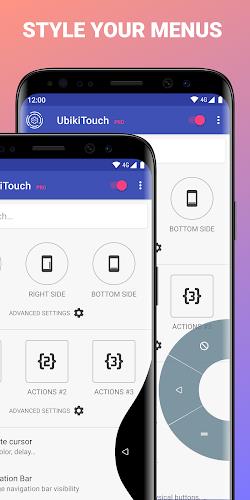
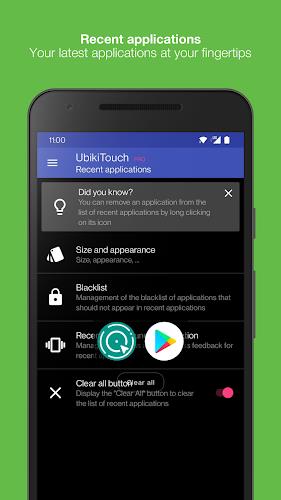
UbikiTouch emphasizes a minimal, responsive interface that avoids clutter. Menus are organized into logical groups and the overlay can be hidden with a single swipe or timed auto-hide. Performance tuning prioritizes low memory usage and reduced CPU load, so the overlay rarely interferes with gaming or media playback. Visual feedback and subtle haptics confirm actions without being intrusive.
Animations are kept short and the touch recognition engine adapts to individual tapping habits. If you use resource-heavy apps, UbikiTouch includes an option to suspend overlays during full-screen activities and resume afterward, which helps preserve battery life and prevents accidental triggers.
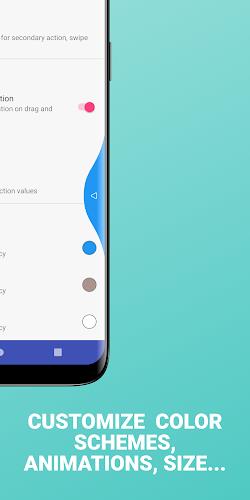
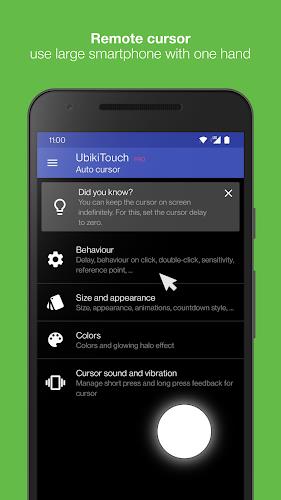
Extensive customization is a highlight. You can resize and recolor floating controls, fine-tune gesture sensitivity, and create multiple profiles for different contexts—work, gaming, or reading. Profiles can be switched manually or tied to app launches so the right controls appear when needed.
Getting started with UbikiTouch takes only a few steps. Install the app, grant the required accessibility or overlay permissions, then open the setup wizard to place your first floating control. The wizard demonstrates gesture mapping and walks you through creating a simple macro. For users concerned about privacy, the app documents what each permission is used for and restricts data collection to functional needs.
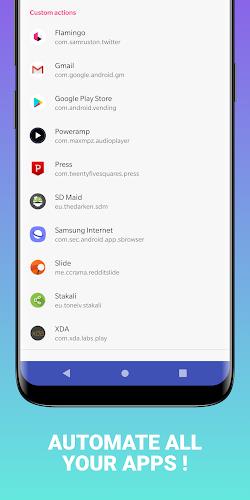
UbikiTouch shines in scenarios where repetitive interactions slow things down. Customer support reps can insert canned replies with a single tap. Gamers can map multi-touch combos to one floating button. People with reduced mobility can create simplified on-screen controls that replace hard-to-hit UI elements. These examples illustrate the app’s flexibility across different needs.
Reviewers and early adopters praise the clean interface, reliability of gesture detection, and the balance between power and simplicity. With thoughtful defaults and plenty of room for fine-tuning, UbikiTouch lets you optimize how you interact with Android without complicated setup or intrusive system modifications.
IP Scanner
Size:27.04M ToolsPingTools Pro
Size:5.86M ToolsGlextor App Folder Organizer
Size:6.04M ToolsRoom Planner
Size:22.60M ToolsAndProxy
Size:5.45M ToolsSkyVPN
Size:26.70M ToolsUPX v98.0.4758.101
Size:159.30M ToolsColorize it
Size:36.00M ToolsUbikiTouch
Size:5.22M ToolsIXO RPAS
Size:3.90M ToolsJota
Size:19.82M ToolsCapacity Info: Battery Health
Size:6.07M ToolsApril 2024 Clash of Clans Update: Unveiling a Fresh Companion, Enhanced Levels, Chat Tagging, and Be
2024-04-16Arrival of Genshin Impact 4.6 Update: 'Embers of Two Realms, Twilight of Crimson'
2024-04-16V2.2 of the Farlight 84 update introduces an overhauled Season structure, fresh in-game currency, an
2024-04-16Monster Never Cry is now accessible on both Android and iOS mobile devices.
2024-04-18PUBG Mobile Teams Up with Bentley Motors: Luxury Cars, Exclusive Collectibles, and Beyond
2024-04-18March 2024 Free Redemption Codes for Honkai: Star Rail
2024-04-18