English
ZOOM Cloud Meetings is a versatile mobile conferencing app that delivers high-quality video and audio alongside a suite of collaboration tools for business, education, and personal use. ZOOM Cloud Meetings combines one-tap meeting join, scheduling and persistent chat with screen sharing, virtual backgrounds, and a built-in whiteboard so participants can focus on content rather than technical setup. Editors and administrators will appreciate how ZOOM Cloud Meetings balances straightforward controls with advanced host options, making it practical for quick calls, recurring team meetings, and larger webinars.
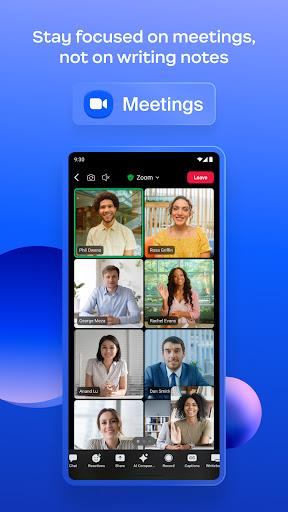
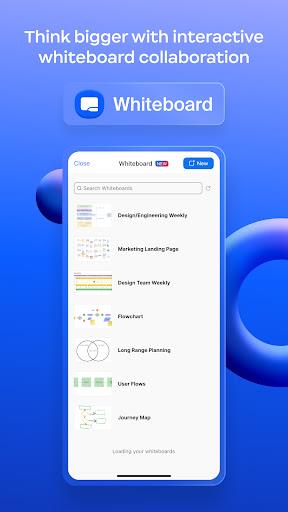
The app supports multi-person HD video, clear audio processing, and in-meeting messaging so teams stay connected even on mobile devices. Hosts can create meetings from the app, invite participants by link or calendar invite, and toggle recording or participant permissions as needed. Screen sharing and the whiteboard make it easy to present slides, annotate documents during instruction, and walk through live demos. Chat functions persist outside meetings, so project conversations and shared files remain available for follow-up.
The mobile interface is designed for simplicity: large controls for mute, camera, and participant management reduce friction during live sessions, and layouts adjust between portrait and landscape automatically. Touch interactions let you switch views, spotlight speakers, or promote attendees to co-host without navigating deep menus. Camera touch-up and background blur are presented as optional controls that help users feel confident on camera without complex setup.
ZOOM Cloud Meetings accommodates a range of meeting structures from informal one-on-one calls to structured webinars with attendee registration. Hosts can schedule recurring sessions, use waiting rooms for controlled entry, and create breakout rooms for small-group collaboration during longer workshops. These structures support a natural progression: an organizer starts with a planning meeting, runs a live session with shared materials, breaks into groups for exercises, and then reconvenes to capture outcomes.
Cloud recording and automatic transcripts provide a reliable way to archive session content for later review. Recordings can be shared with participants and saved for training or documentation; many teams use recordings to reinforce learning by pairing them with meeting notes. Where network conditions are limited, recordings and exported transcripts allow users to review material offline, supporting asynchronous workflows for distributed teams.
Security options include meeting passcodes, waiting rooms, and host controls that limit screen sharing or participant capabilities. For organizations with specific compliance needs, role-based permissions and meeting logs help administrators track activity and enforce policies centrally. The app provides configurable account settings so teams can set default meeting protections and require authentication when necessary.
Adaptive video quality and optimized audio processing help maintain call stability across mobile networks and Wi-Fi. The client reduces bandwidth when needed to minimize dropped connections and uses hardware acceleration on supported devices to conserve battery. Noise suppression and echo reduction improve audio clarity, and integration with Bluetooth headsets or external microphones further enhances the experience for frequent callers.
Persistent chat supports direct messages and group channels where users exchange text, images, links, and files related to ongoing projects. In-meeting chat enables quick instructions without interrupting the speaker, and threaded conversations in channels keep longer discussions organized. Calendar integration and single sign-on options streamline scheduling and reduce friction for organizations that rely on centrally managed accounts.
Accessibility features include captions, screen reader compatibility, and adjustable control sizes to help participants with diverse needs. Personalization options such as virtual backgrounds, layout choices, and camera touch-up settings let users present consistently across meetings. The app’s clear visual cues and predictable controls lower the learning curve for new users while offering power features for advanced hosts.
For dependable sessions, check network quality before joining and switch to Wi-Fi when possible, close background apps to free resources, and test camera and microphone using preview tools. Use a headset to reduce echo and consider enabling recording and transcripts for important sessions so absent participants can catch up asynchronously. These small practices help meetings run smoothly and make recorded content more useful as a reference.
To get started, download the app, sign in with email, SSO, or a linked account, and set basic preferences for video, audio, and notifications. Schedule your first meeting from the app or your calendar, invite participants with a link or meeting ID, and explore host settings such as waiting rooms and participant muting before going live. With a short familiarization period, teams can rely on ZOOM Cloud Meetings for everyday collaboration, teaching, and remote presentations.
ZOOM Cloud Meetings
Size:189.90M Media & VideoViper Play fútbol en vivo
Size:22.60M Media & VideoZoom Workplace
Size:189.90M Media & VideoFIFA+
Size:58.60M Media & Video9Goal Tv
Size:12.70M Media & VideoFilmyhit
Size:12.90M Media & VideoBlurrr
Size:100.33M Media & VideosmartChord vV MOD Premium Unlocked
Size:7.00M Media & VideoJukeBox MOD Premium Unlocked
Size:17.99M Media & VideotTorrent MOD Paid/Optimized
Size:46.52M Media & VideoIP Camera Pro
Size:49.27M Media & VideoUSB Camera Pro
Size:80.36M Media & VideoApril 2024 Clash of Clans Update: Unveiling a Fresh Companion, Enhanced Levels, Chat Tagging, and Be
2024-04-16Arrival of Genshin Impact 4.6 Update: 'Embers of Two Realms, Twilight of Crimson'
2024-04-16V2.2 of the Farlight 84 update introduces an overhauled Season structure, fresh in-game currency, an
2024-04-16Monster Never Cry is now accessible on both Android and iOS mobile devices.
2024-04-18PUBG Mobile Teams Up with Bentley Motors: Luxury Cars, Exclusive Collectibles, and Beyond
2024-04-18March 2024 Free Redemption Codes for Honkai: Star Rail
2024-04-18