English
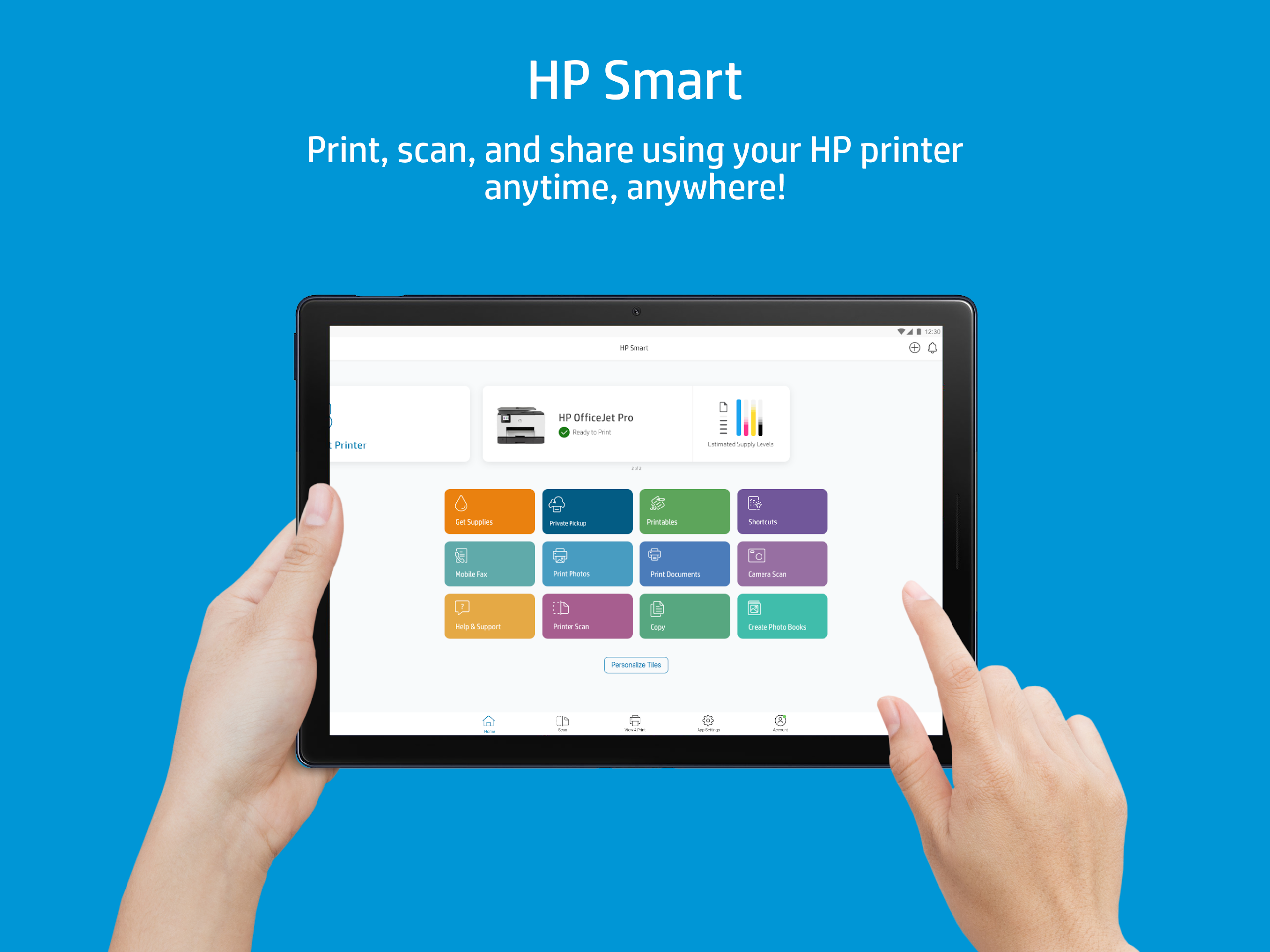
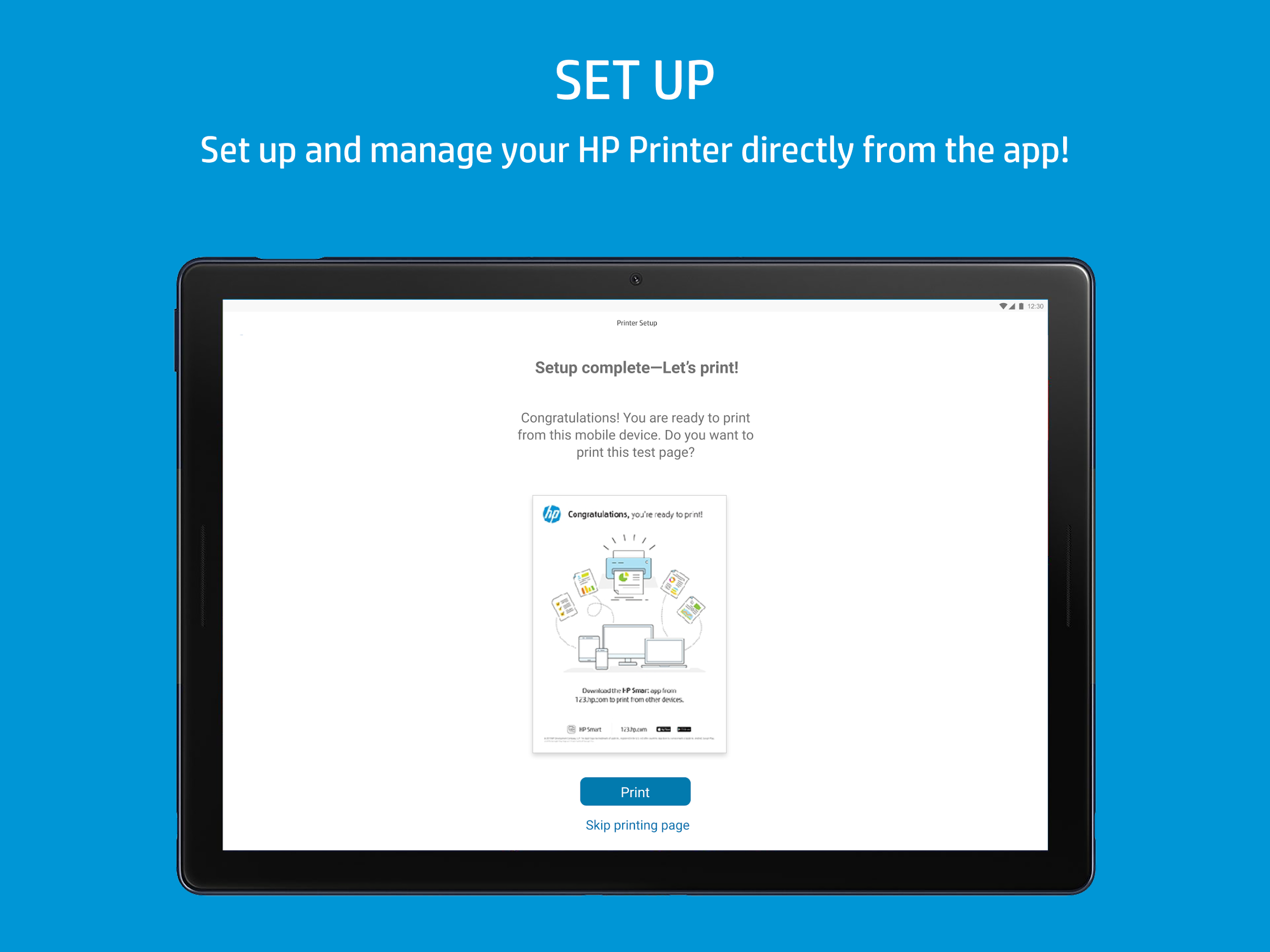
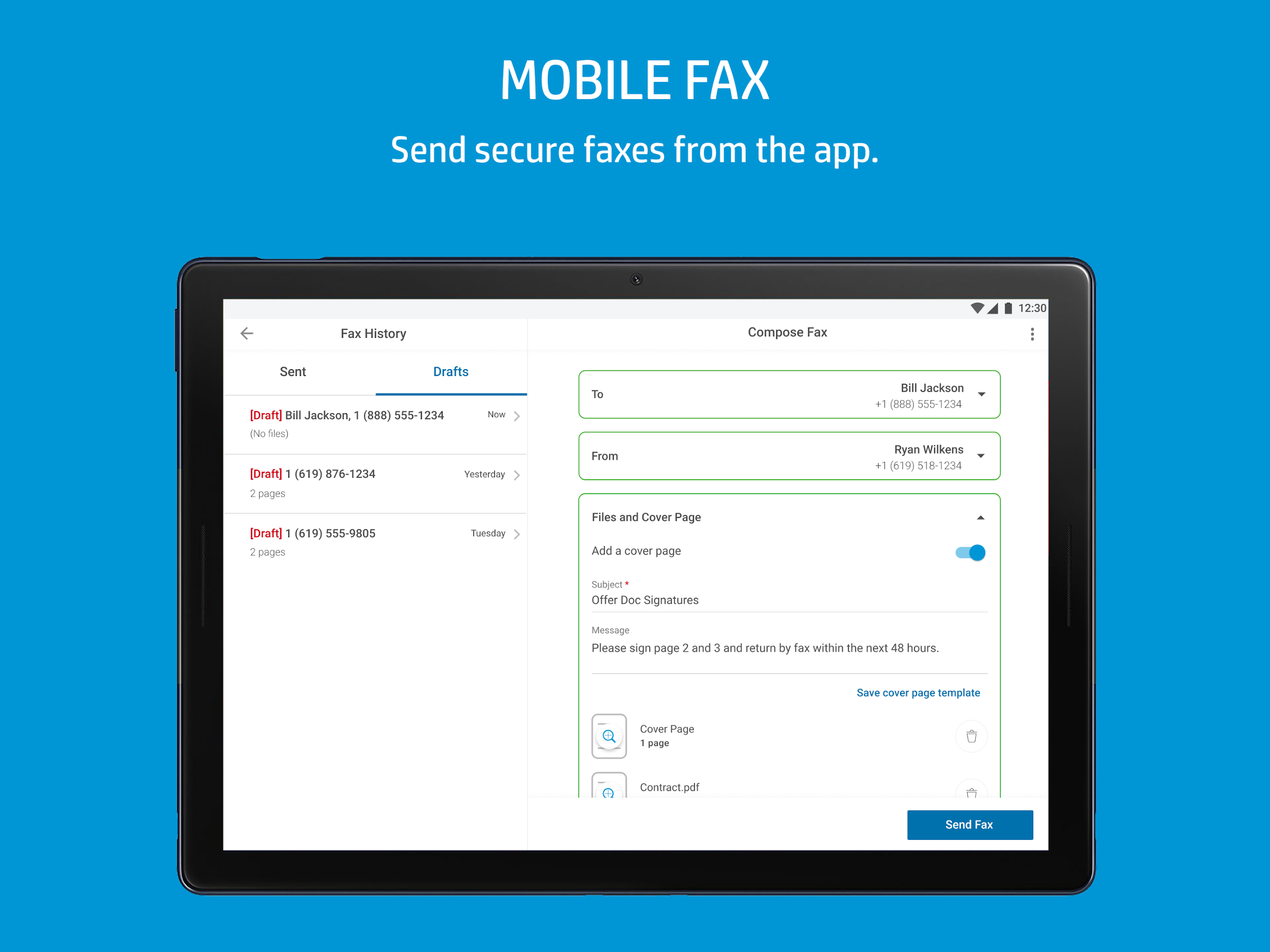
HP Smart brings mobile printing and scanning to your fingertips by connecting phones and tablets with HP printers for fast setup, cloud access, and document management. This app simplifies printing, scanning to PDF, and sharing while adding workflow shortcuts and basic editing tools for everyday home and office tasks.
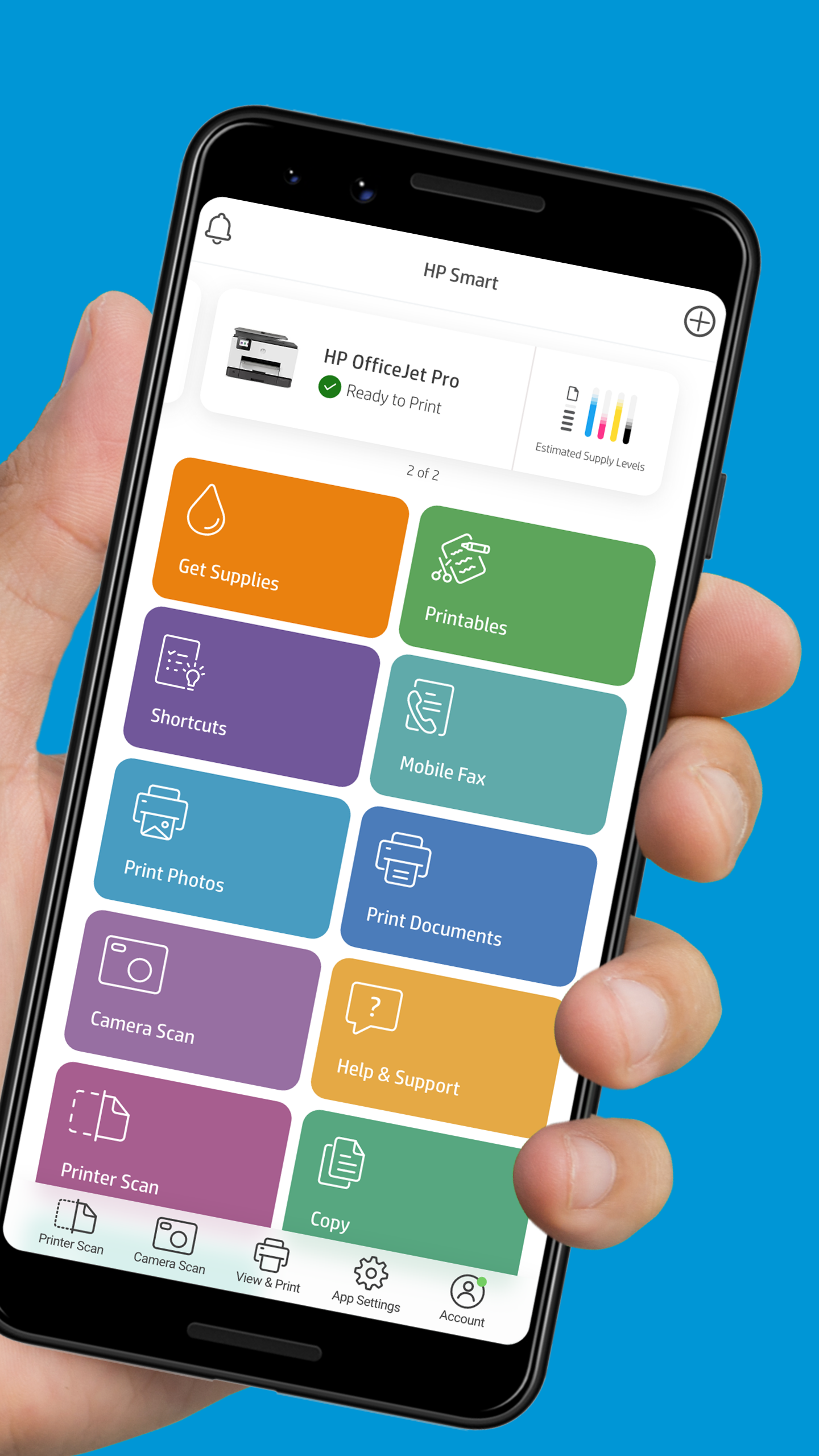
HP Smart centralizes printing and scanning so you can manage documents without a PC. The interface helps find printers on local networks, access photos and cloud storage, and perform common jobs like printing boarding passes or scanning receipts. Its design focuses on simple, guided steps to reduce friction for users unfamiliar with printer software.
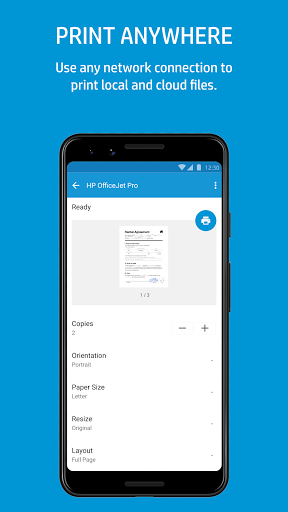
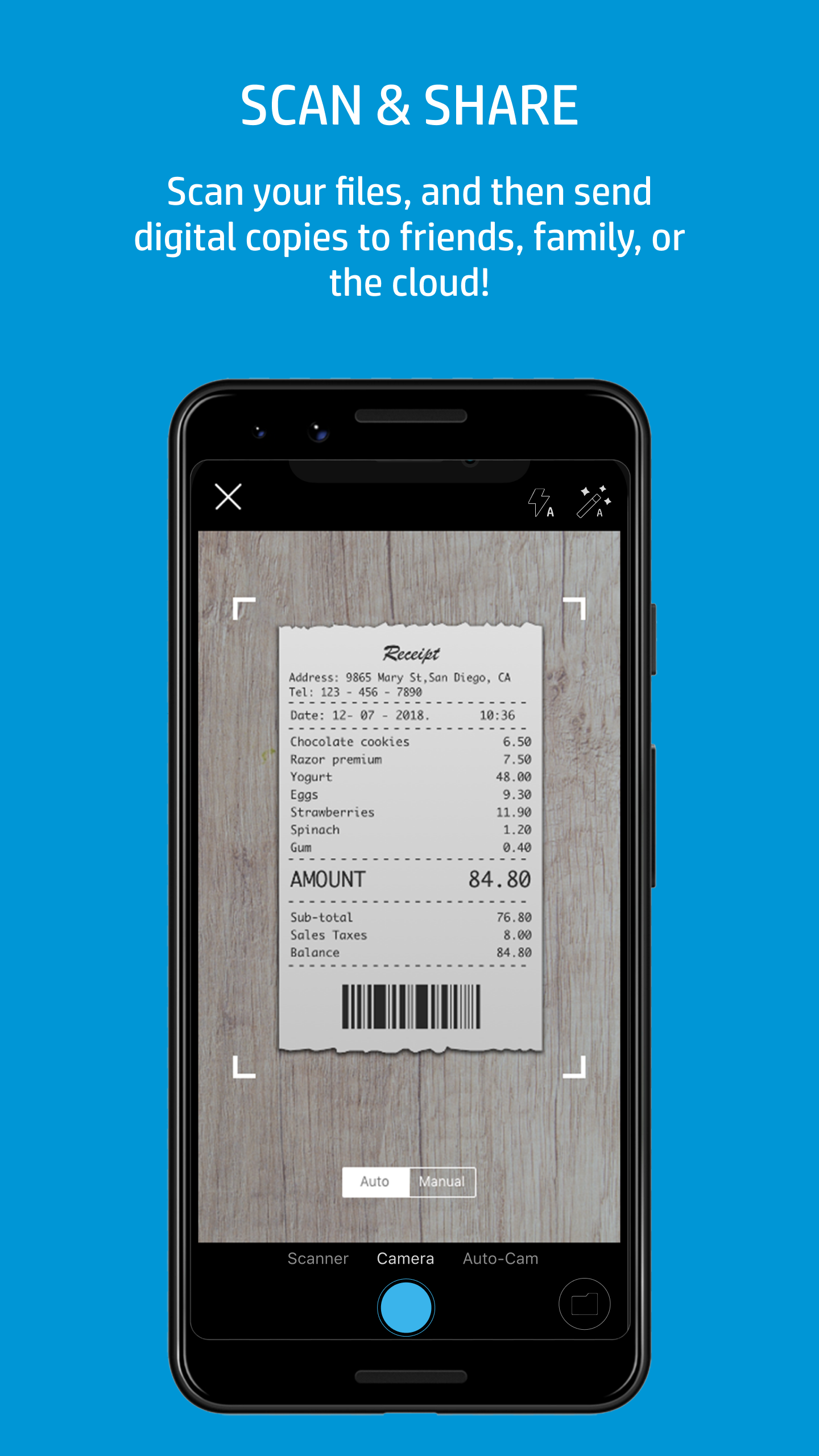
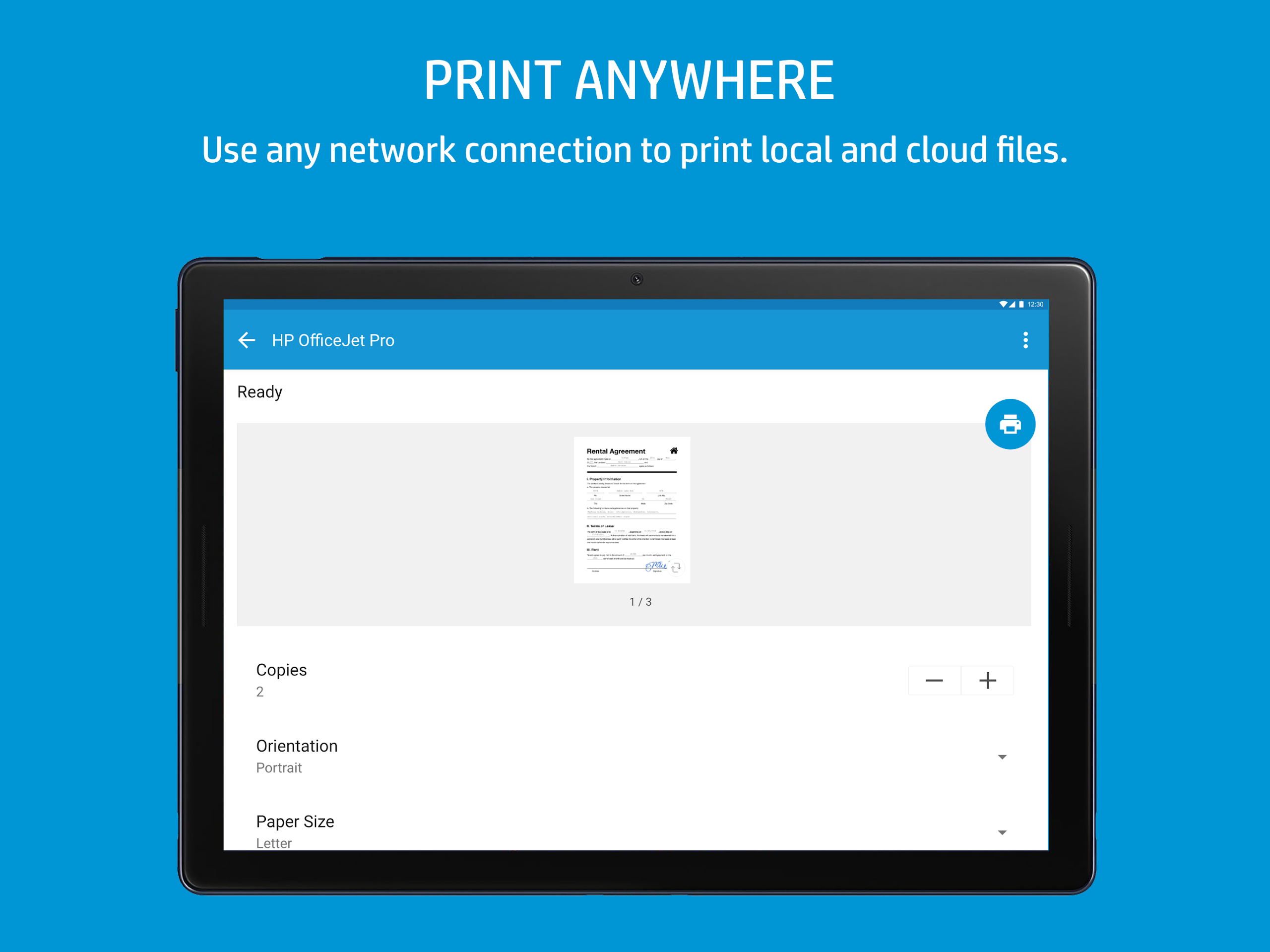
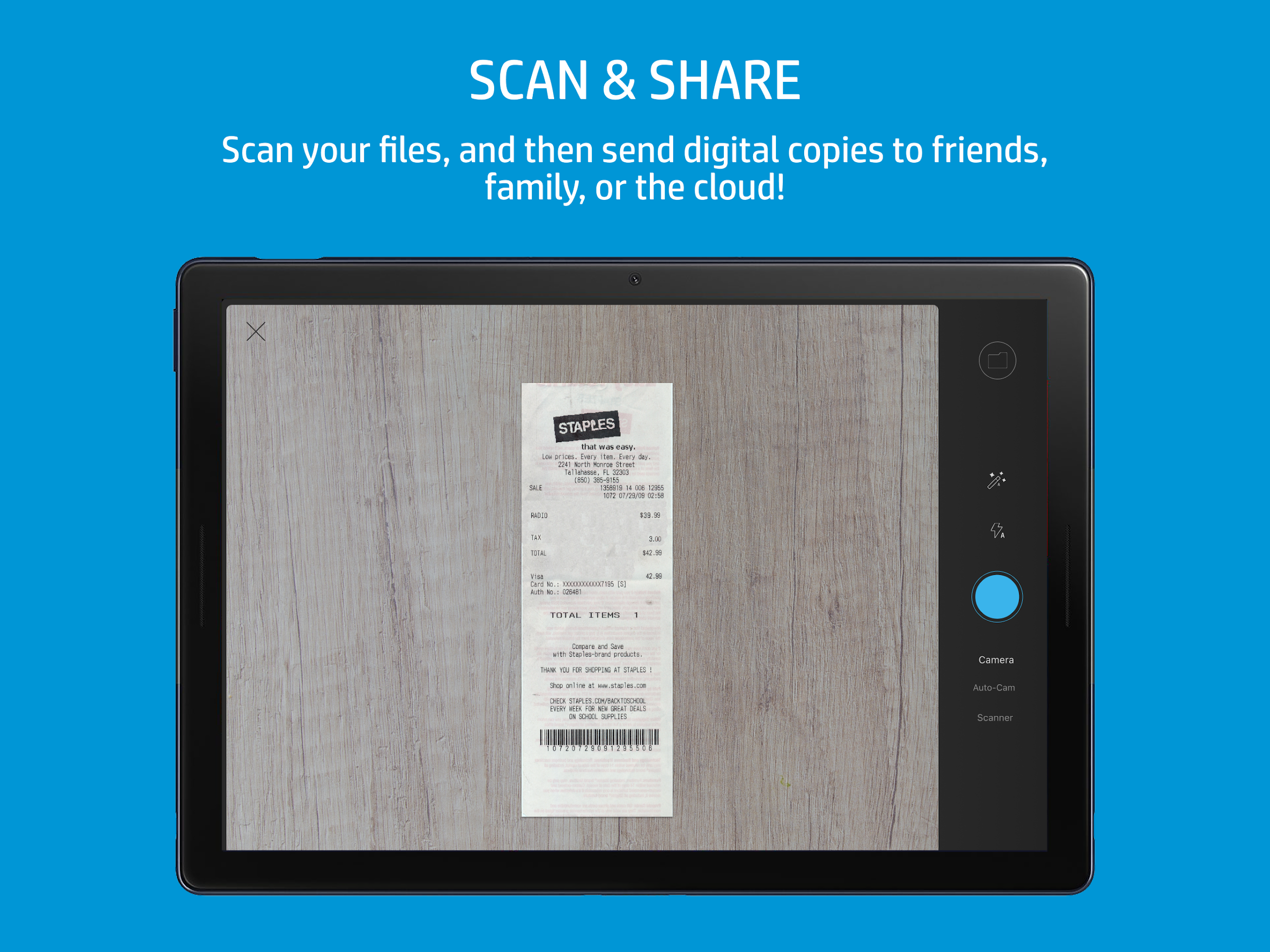
Using HP Smart, printing a file typically involves selecting the printer, choosing page range and quality, and tapping print. Scanning is equally straightforward: open the scan feature, capture the document with your camera, adjust crop or color, then save or share. The app supports batch scanning when you need to digitize multiple pages into a single PDF.
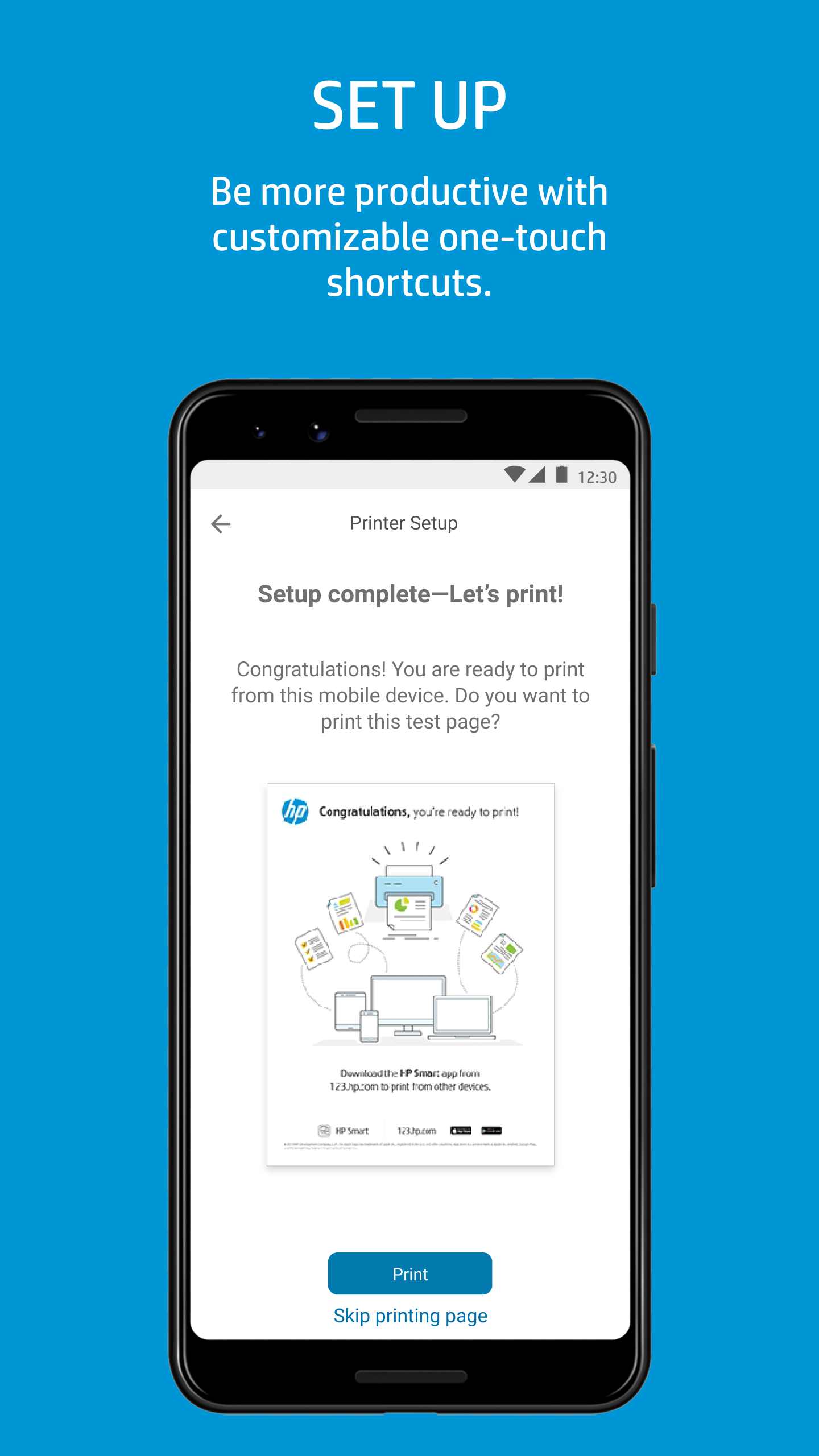
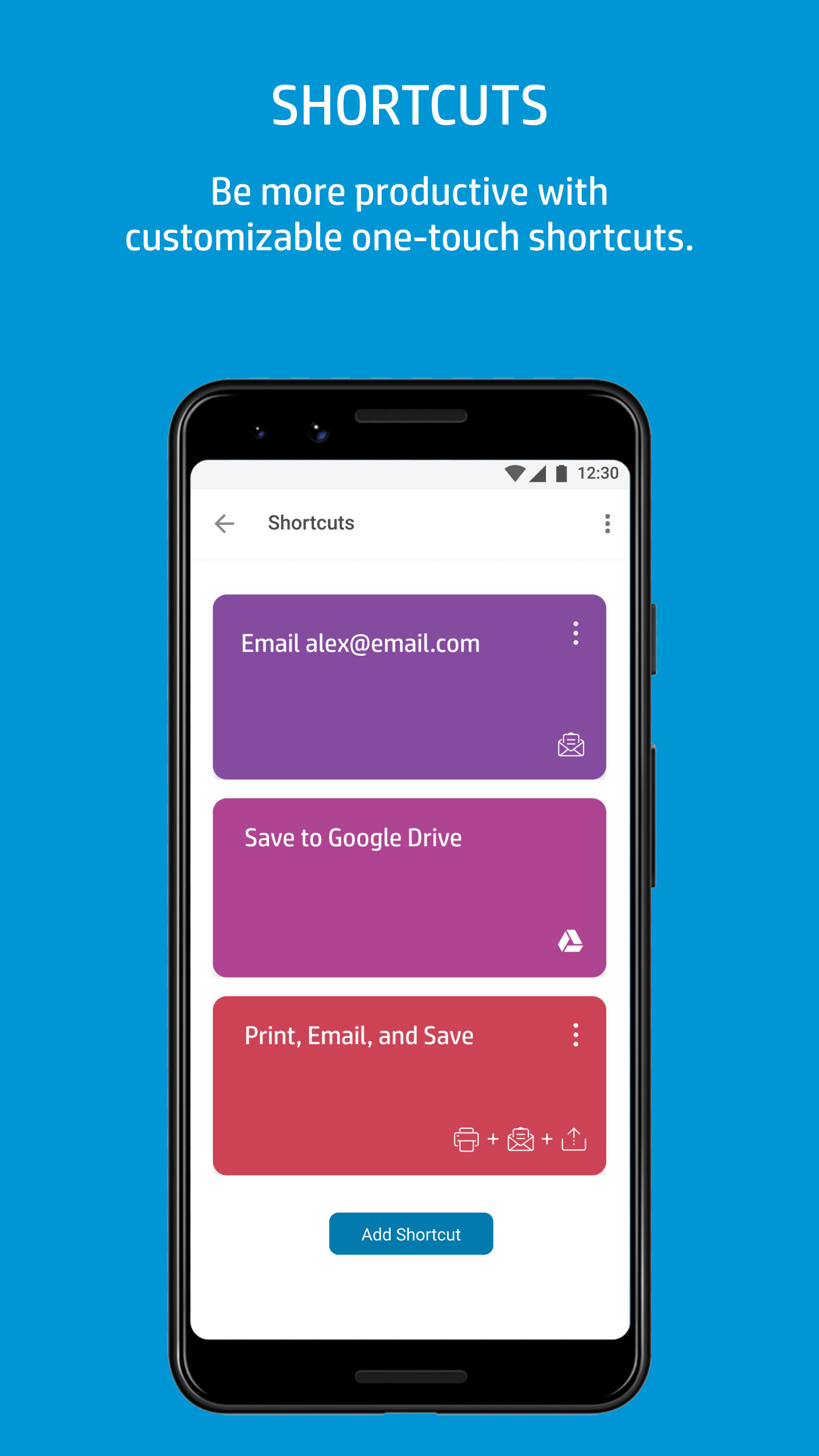
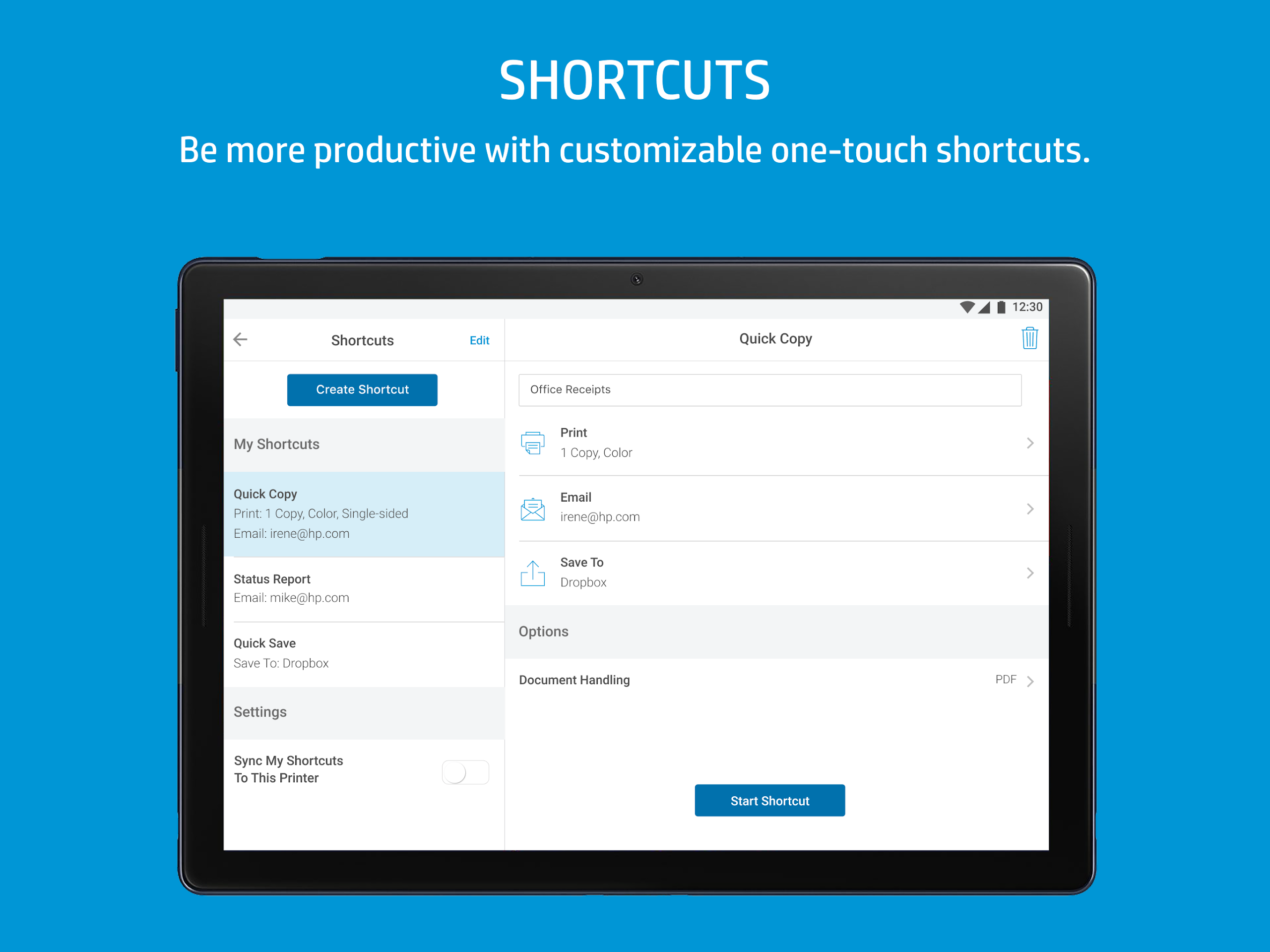
Smart Tasks are particularly useful if you repeat the same actions—scan a receipt and email it to accounting, or convert a printed form into an editable PDF and save it to cloud storage. Customizable shortcuts reduce repetitive steps, improving speed for common household or small-business routines.
HP Smart uses a clean layout with large icons and labeled options so the most-used features are easy to find. Settings let you tweak print quality, paper size, and default save locations. Visual feedback during printing or scanning helps diagnose common issues like low ink or connection problems without leaving the app.
The app supports a broad range of HP printers, though exact capabilities depend on model and OS. Performance is generally responsive on modern phones and tablets. Network printing relies on reliable Wi-Fi; connection interruptions are the most frequent cause of failed jobs. For large files or photos, choosing the right quality and file type helps balance speed and output fidelity.
Beyond basic use, HP Smart includes cropping, rotation, and color adjustment for scanned images. Some models enable two-sided scanning or printing, and options exist for borderless photo printing where supported. Users can set default preferences to streamline common tasks and reduce repetitive choices.
The app requests access to storage and network features to perform printing and scanning. When linking cloud accounts, review permissions and choose what the app can access. For shared printers in public or office spaces, use secure network settings and avoid storing sensitive documents on shared devices.
HP Smart streamlines everyday printing and scanning, making device-to-printer workflows faster and more accessible. It fits users who need straightforward document handling without complex software, while offering enough features to satisfy small office or home-office needs. If you want to reduce steps between capturing a page and producing a finished document, HP Smart provides a practical, mobile-first solution.
Uizard.io
Size:2.95M ToolsHP Smart
Size:354.30M ToolsDonationAlerts Studio
Size:7.20M ToolsWeb Browser & Explorer
Size:19.20M ToolsNekoBox
Size:39.45M Toolsgogoanime
Size:10.60M ToolsApp Hider
Size:28.40M ToolsQuick Launcher for Android 17
Size:35.10M ToolsiTranslate Translator
Size:299.50M ToolsmyIM3
Size:65.06M ToolsGoogle Home
Size:93.70M ToolsFaceFlip
Size:49.83M ToolsApril 2024 Clash of Clans Update: Unveiling a Fresh Companion, Enhanced Levels, Chat Tagging, and Be
2024-04-16Arrival of Genshin Impact 4.6 Update: 'Embers of Two Realms, Twilight of Crimson'
2024-04-16V2.2 of the Farlight 84 update introduces an overhauled Season structure, fresh in-game currency, an
2024-04-16Monster Never Cry is now accessible on both Android and iOS mobile devices.
2024-04-18PUBG Mobile Teams Up with Bentley Motors: Luxury Cars, Exclusive Collectibles, and Beyond
2024-04-18March 2024 Free Redemption Codes for Honkai: Star Rail
2024-04-18