English
Network Guru: Speed Indicator is a lightweight Android utility that displays real-time network throughput and latency on-screen. It gives clear, unobtrusive readouts for mobile data and Wi‑Fi, helping power users monitor connection quality, troubleshoot slow links, and verify ISP performance with minimal battery overhead.
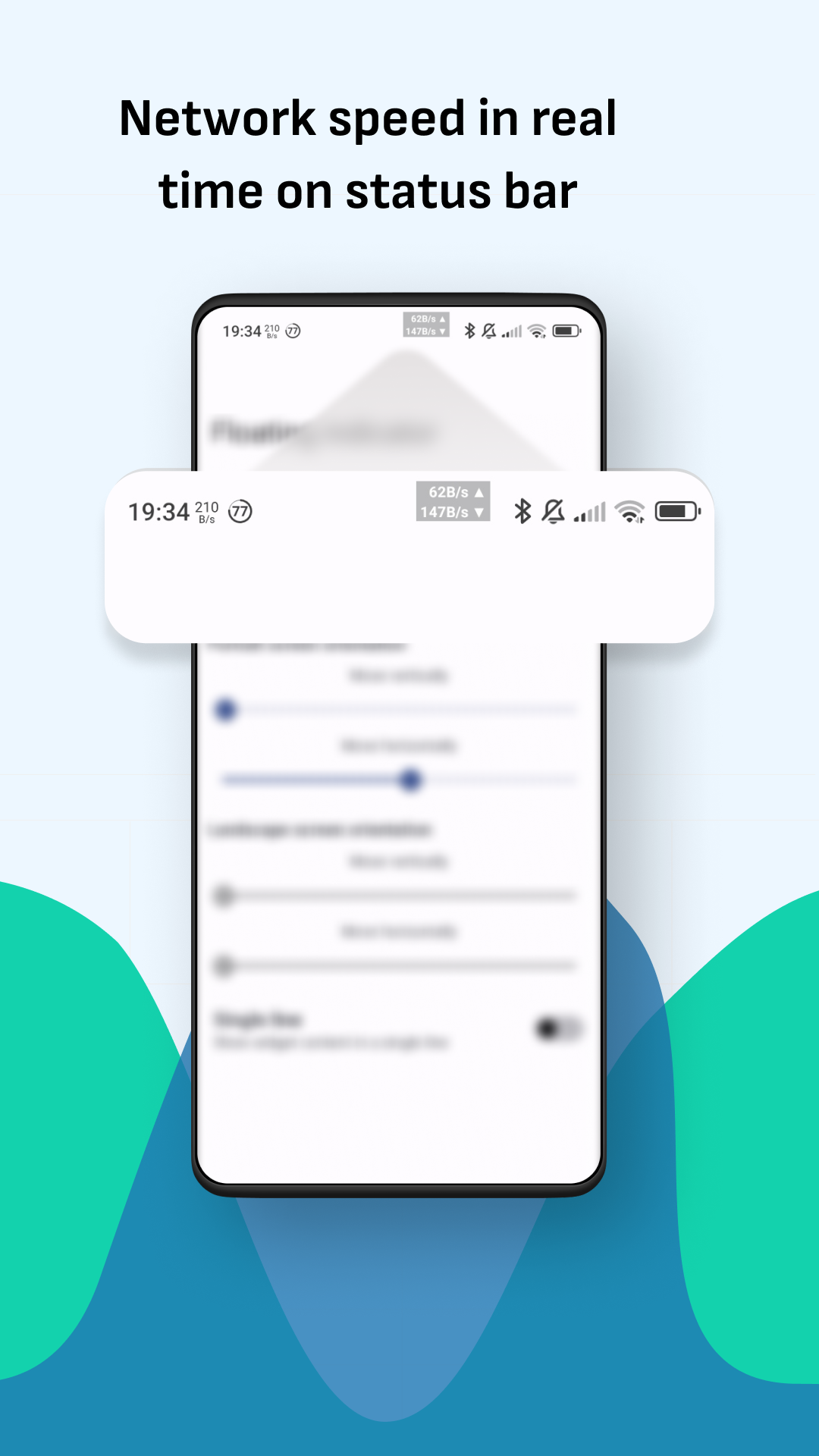
Designed for people who need immediate insight into connection behavior, Network Guru: Speed Indicator runs as a small overlay or notification widget. It focuses on practical measurements — instantaneous upload and download speeds, packet latency, and data usage — without burying information behind menus. The app is compact and aims to be reliable on a wide range of devices.
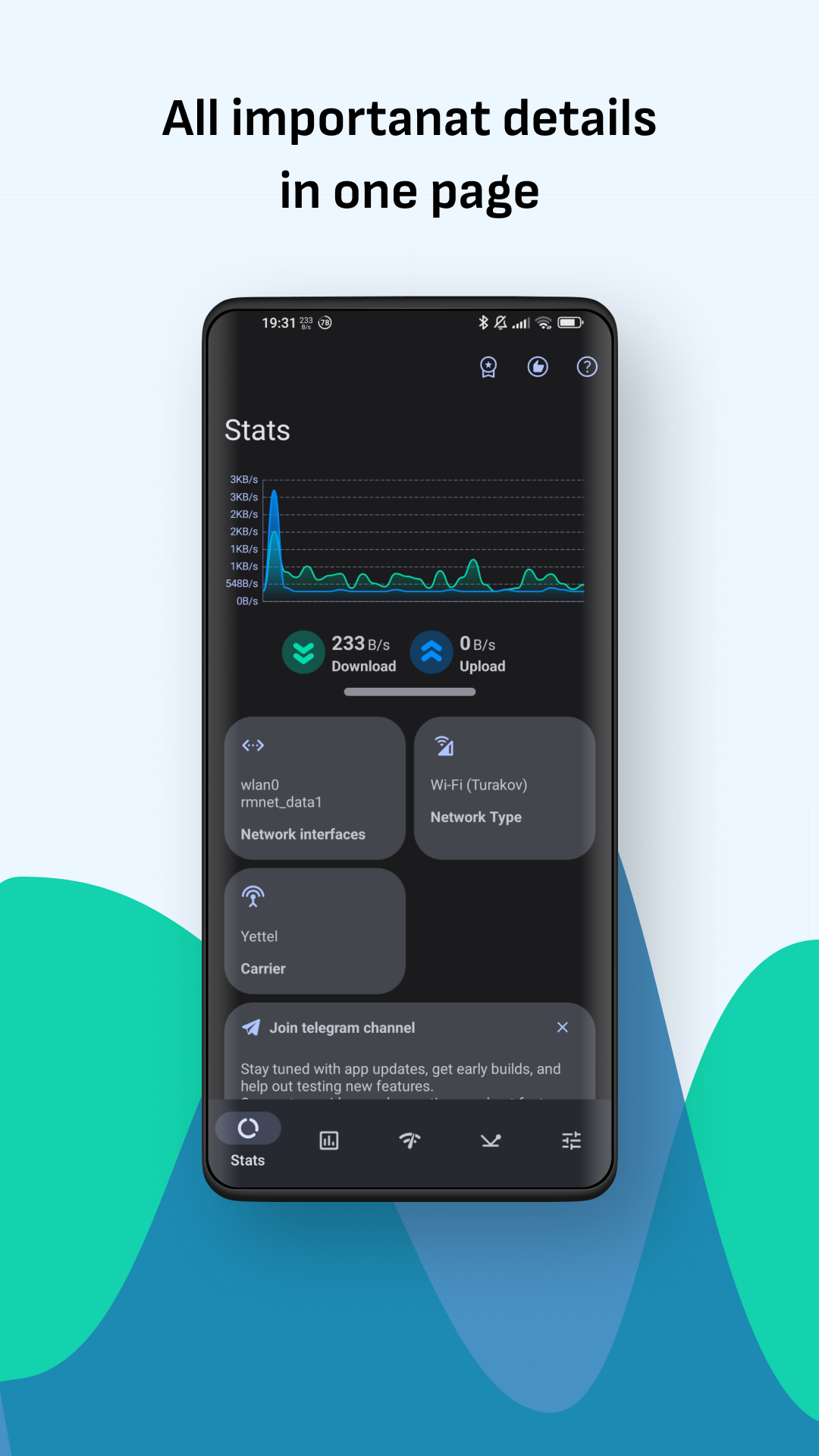
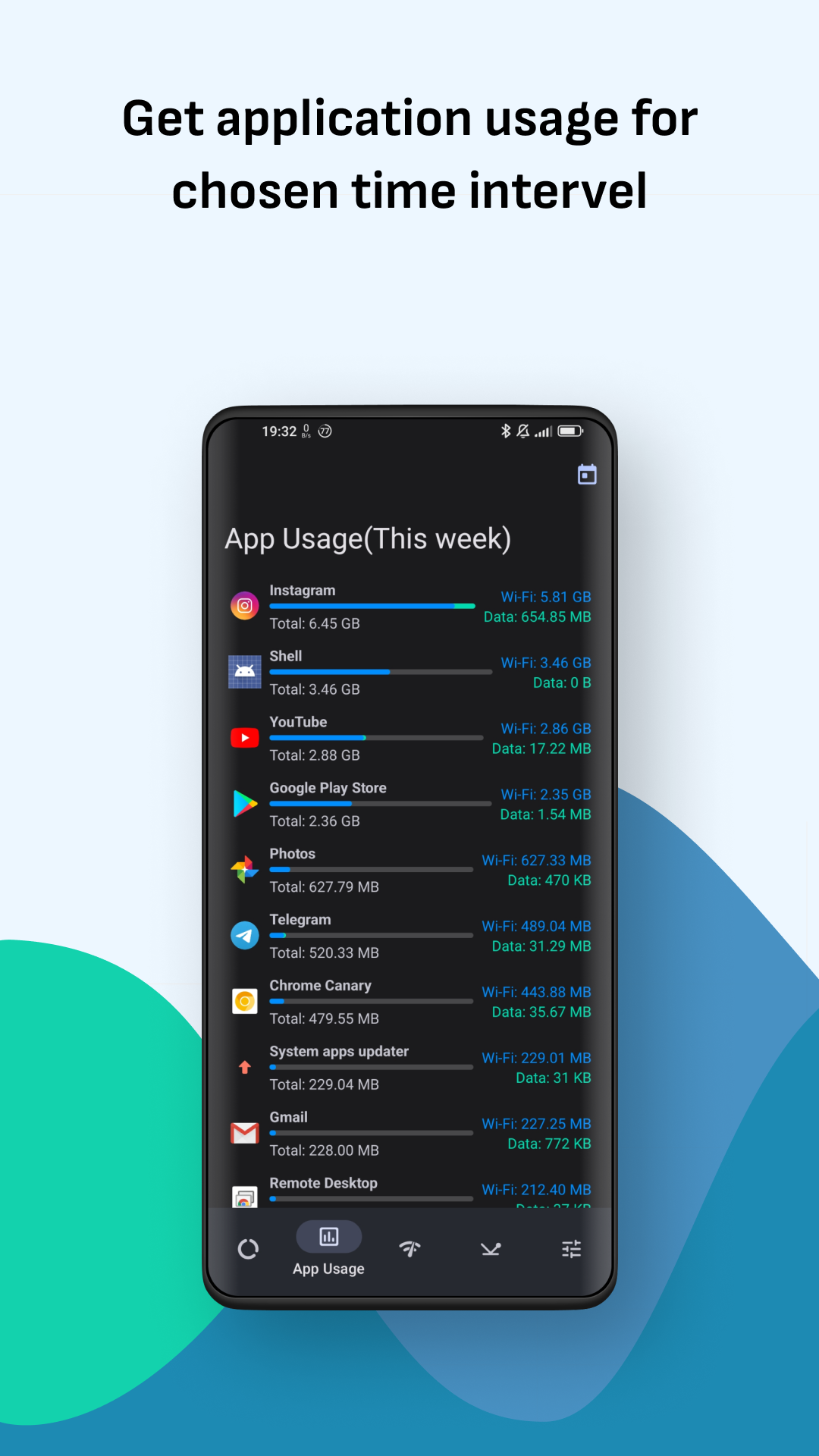
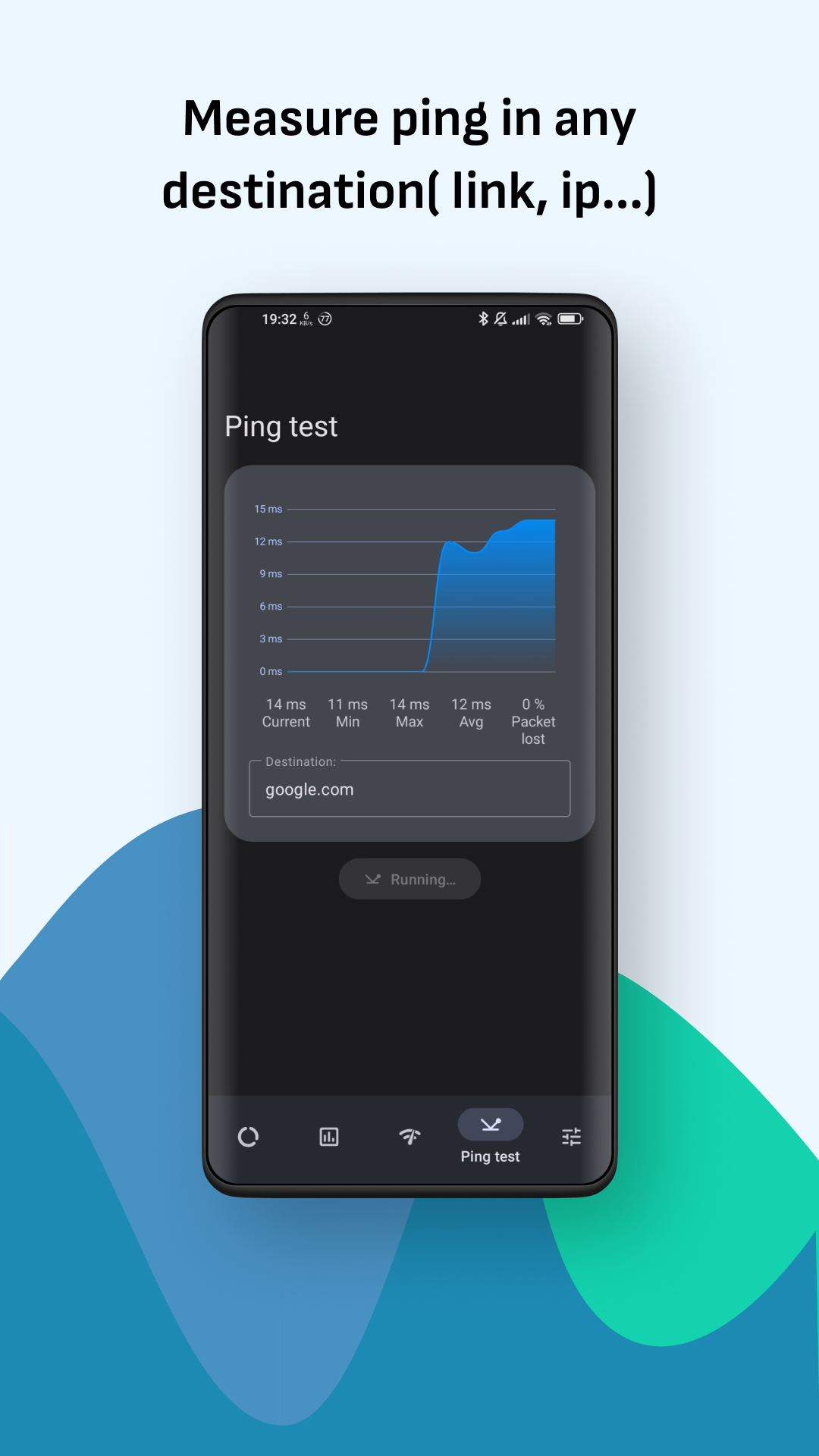
The core of the app is its monitoring engine. You get continuous sampling of network throughput, a live graph, and options to test latency to specific endpoints. Network Guru: Speed Indicator separates Wi‑Fi and cellular stats so you can see which interface is limiting performance. It also logs peaks and averages over time, useful when tracking intermittent slowdowns.
After installation, Network Guru: Speed Indicator requests standard network permissions. Once enabled, the overlay collects small packets to estimate throughput and measures round-trip times against reliable server endpoints. The app avoids large test downloads unless you explicitly run a full speed test. That keeps data usage low while still delivering actionable numbers.
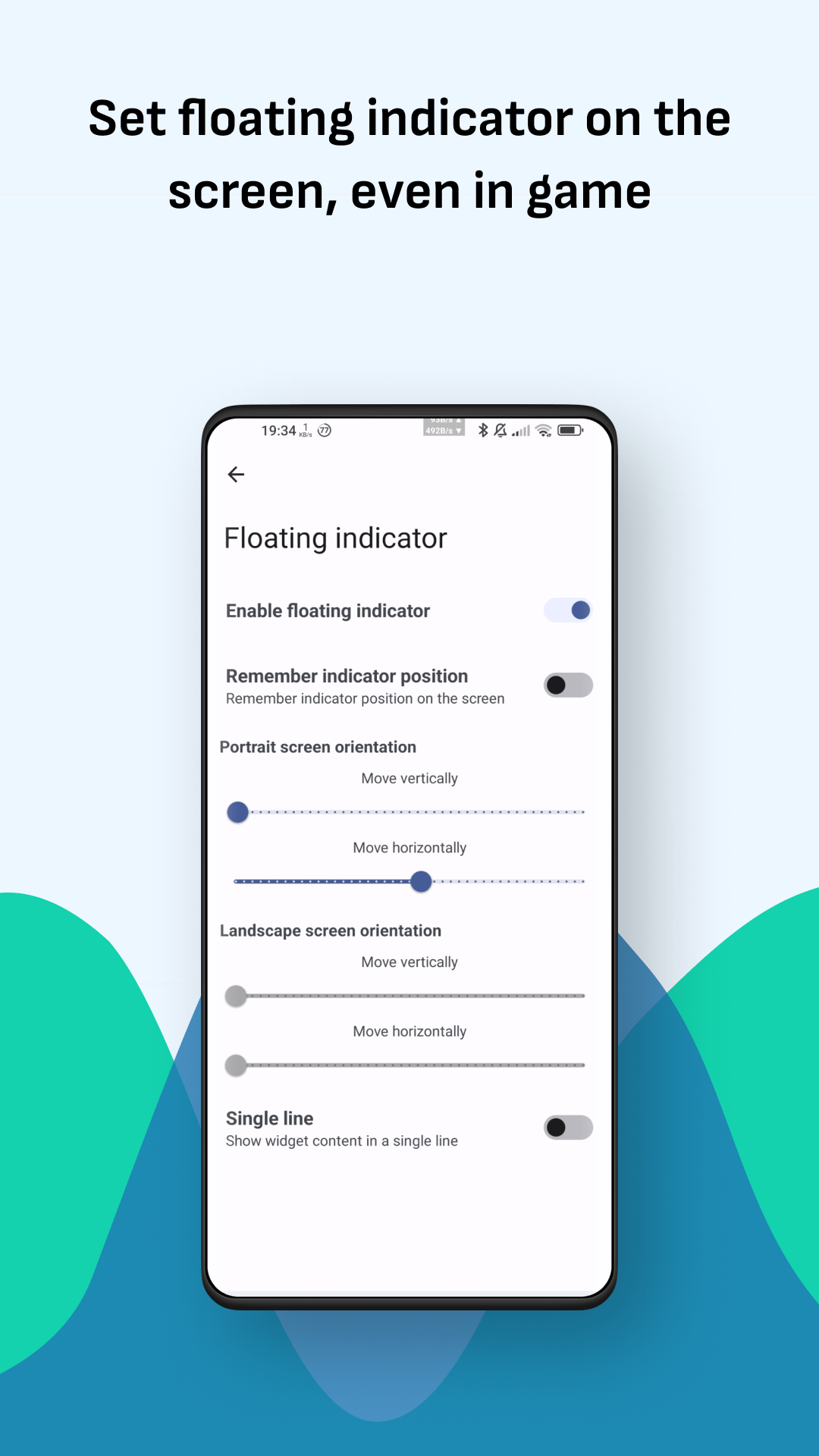
Interface options are straightforward. Users can choose compact or expanded overlays, color schemes, decimal precision, and whether to show total data consumed during a session. The placement of the overlay is adjustable, and the readout can be hidden automatically in full-screen apps. These controls let you keep the display visible without distracting from other tasks.
Network Guru: Speed Indicator prioritizes low CPU and battery impact. Sampling rates are configurable; the default setting balances responsiveness with efficiency. When idle, the app reduces activity and suspends background probes until the device wakes or network activity resumes. Most modern devices handle the app with negligible performance difference.
There are many everyday situations where the app helps. If streaming stutters, the overlay shows whether download speed dipped. When video calls lag, latency spikes reveal where the issue sits. Mobile workers can confirm whether switching between Wi‑Fi and cellular gives a performance benefit. It’s equally useful for troubleshooting home routers, identifying poor AP placement, or validating a recent ISP throttling complaint.
For users who want transparent, ongoing feedback about connection health, Network Guru: Speed Indicator provides a clean, no-nonsense solution. It emphasizes clarity and configurability without overwhelming casual users. The ability to separate interface stats, keep a compact overlay, and control sampling frequency makes it a practical utility for both technicians and everyday consumers.
Download and enable the overlay permission, allow background data access, and position the widget where it’s most useful. Spend a few minutes exploring color and sampling options so the readout matches your workflow. Within minutes you’ll have a continuous view of network behavior that helps you make quick, informed decisions about connectivity.
NetBlade: WiFi & LAN Scanner
Size:11.79M ToolsNetwork Guru: Speed Indicator
Size:5.40M ToolsTouch VPN
Size:25.60M ToolsVenlow
Size:148.20M ToolsInstall Buddy
Size:11.25M ToolsPixels: Resolution+DPI Changer
Size:6.90M ToolsVPN China
Size:21.00M ToolsDesh Bangla Keyboard
Size:20.10M ToolsAlien Tower Realm
Size:442.20M ToolsVolume Limiter 2
Size:1.52M ToolsScreen Mirroring - 1001 TVs
Size:42.70M ToolsShortcut+
Size:5.87M ToolsApril 2024 Clash of Clans Update: Unveiling a Fresh Companion, Enhanced Levels, Chat Tagging, and Be
2024-04-16Arrival of Genshin Impact 4.6 Update: 'Embers of Two Realms, Twilight of Crimson'
2024-04-16V2.2 of the Farlight 84 update introduces an overhauled Season structure, fresh in-game currency, an
2024-04-16Monster Never Cry is now accessible on both Android and iOS mobile devices.
2024-04-18PUBG Mobile Teams Up with Bentley Motors: Luxury Cars, Exclusive Collectibles, and Beyond
2024-04-18March 2024 Free Redemption Codes for Honkai: Star Rail
2024-04-18